
Accessibility
# Index
# Description
# What Is Accessibility?
# Why Is Accessibility Important?
# Types of Accessibility
# Common Accessibility Features
# Accessibility Technologies
# Accessibility Guidelines
# Examples of Accessible Design
# Accessibility and SEO
# Common Accessibility Mistakes
# Accessibility in Modern Frontend Development
# Description:
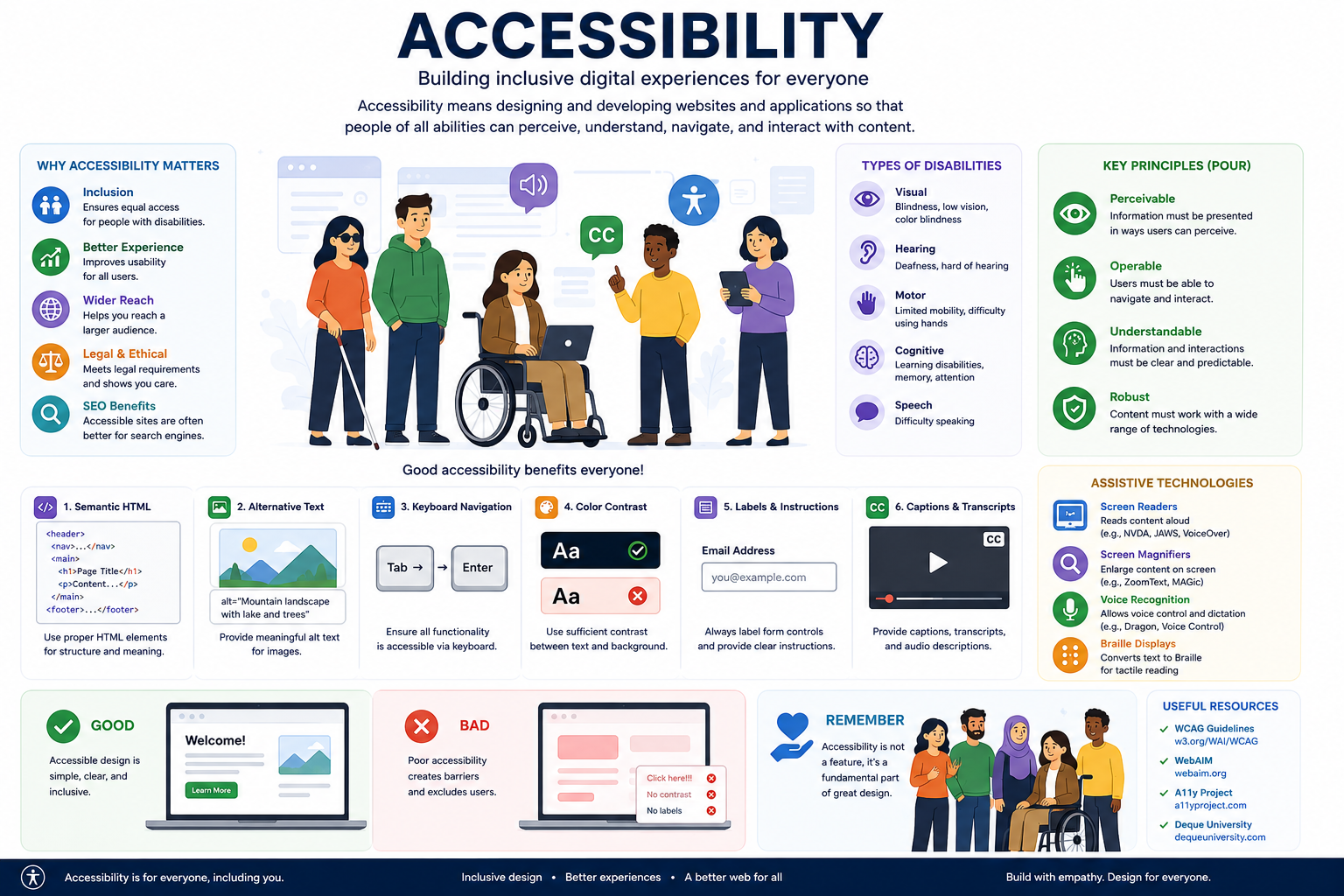
Accessibility is the practice of designing and developing websites, applications, and digital products so that they can be used by as many people as possible, including individuals with disabilities. Good accessibility ensures that users with visual, auditory, motor, cognitive, or other impairments can effectively perceive, understand, navigate, and interact with digital content. Accessibility is not only about compliance; it is about creating inclusive experiences that benefit everyone.
# What Is Accessibility?
Accessibility, often abbreviated as a11y, refers to making digital products usable for people with diverse abilities and needs.
For example, some users may:
- Use screen readers instead of visual displays.
- Navigate using a keyboard rather than a mouse.
- Require larger text or higher contrast.
- Rely on captions for audio content.
Accessible applications ensure these users can perform tasks independently.
# Why Is Accessibility Important?
Accessibility helps:
- Provide equal access to information.
- Improve usability for all users.
- Reach a wider audience.
- Meet legal and regulatory requirements.
- Enhance SEO and search engine indexing.
- Improve overall user experience.
Good accessibility benefits everyone, not just users with disabilities.
# Types of Accessibility
# Visual Accessibility
Supports users with:
- Blindness
- Low vision
- Color blindness
Examples:
- Screen reader compatibility
- High contrast themes
- Alternative text for images
- Resizable text
# Hearing Accessibility
Supports users with hearing impairments.
Examples:
- Captions
- Subtitles
- Transcripts
- Visual notifications
# Motor Accessibility
Supports users with limited mobility.
Examples:
- Keyboard navigation
- Large clickable areas
- Voice input
- Switch devices
# Cognitive Accessibility
Supports users with:
- Learning disabilities
- Memory challenges
- Attention disorders
Examples:
- Clear navigation
- Simple language
- Consistent layouts
- Error prevention
# Common Accessibility Features
# Alternative Text (Alt Text)
Images should include descriptive text.
Example: <img src="product.jpg" alt="Wireless headphones in black color" />
Screen readers use alt text to describe images.
# Keyboard Navigation
Users should be able to navigate using:
- Tab
- Enter
- Arrow keys
Interactive elements should remain accessible without requiring a mouse.
# Semantic HTML
Proper HTML improves accessibility.
Example:
- Good: <button>Submit</button>
- Less Accessible: <div onclick="submit()">Submit</div>
Semantic elements provide meaning to assistive technologies.
# Color Contrast
Text should remain readable against its background.
Poor contrast can make content difficult to read.
Good accessibility ensures sufficient contrast between colors.
# Labels for Form Inputs
Inputs should always have labels.
Example: <label for="email">Email Address</label><input id="email" type="email">
Labels help screen readers identify form controls.
# Captions and Transcripts
Videos should provide:
- Captions
- Subtitles
- Transcripts
These features improve accessibility for users with hearing impairments.
# Accessibility Technologies
Many users rely on assistive technologies such as:
# Screen Readers
Examples:
- NVDA
- VoiceOver
- JAWS
They convert on-screen information into speech.
# Screen Magnifiers
Help users with low vision enlarge content.
# Voice Recognition Software
Allows users to control devices using speech.
# Braille Displays
Convert digital text into Braille characters.
# Accessibility Guidelines
The Web Content Accessibility Guidelines (WCAG) define standards for accessibility.
The four core principles are:
# Perceivable
Content should be visible or understandable through multiple senses.
# Operable
Users should be able to navigate and interact with the interface.
# Understandable
Information and interactions should be clear and predictable.
# Robust
Content should work with various browsers and assistive technologies.
These principles are often abbreviated as POUR.
# Examples of Accessible Design
Good practices include:
- Responsive layouts
- Keyboard support
- Clear headings
- Descriptive links
- Sufficient color contrast
- Error messages with guidance
- Focus indicators
- Captions for videos
- Semantic HTML
# Accessibility and SEO
Accessibility improvements often benefit search engines.
Examples:
- Proper headings improve indexing.
- Alt text helps image search.
- Semantic HTML improves content understanding.
- Better navigation enhances user experience.
Accessibility and SEO frequently complement each other.
# Common Accessibility Mistakes
# Missing Alt Text
Images become invisible to screen readers.
# Poor Color Contrast
Content becomes difficult to read.
# Keyboard Traps
Users cannot navigate away from elements.
# Non-Semantic HTML
Assistive technologies struggle to understand content.
# Missing Labels
Forms become confusing for screen readers.
# Relying Only on Color
Information should not depend solely on color differences.
# Accessibility in Modern Frontend Development
Modern frameworks and tools support accessibility.
Examples include:
- React
- Angular
- Vue
- Next.js
Libraries and design systems often provide accessible components, but developers are still responsible for implementing them correctly.
Accessibility should be considered throughout the development process rather than added later.
Article Metadata:
Published Date: 2026-06-23
Updated Date: 2026-06-23
About the Author: Team absequ is a group of engineers and researchers working on real-world systems, software development, and technology solutions.
Further Reading: